


Step 1: Setting your outputs to your OMNIBUS drivers
– First, go to System Preferences and select Sound
– Select OMNIBUS A as your output
– Next, set OMNIBUS B as the output within your DAW of choice.
This will ensure the applications on your computer are using the OMNIBUS A driver and your DAW will be using the OMNIBUS B driver.
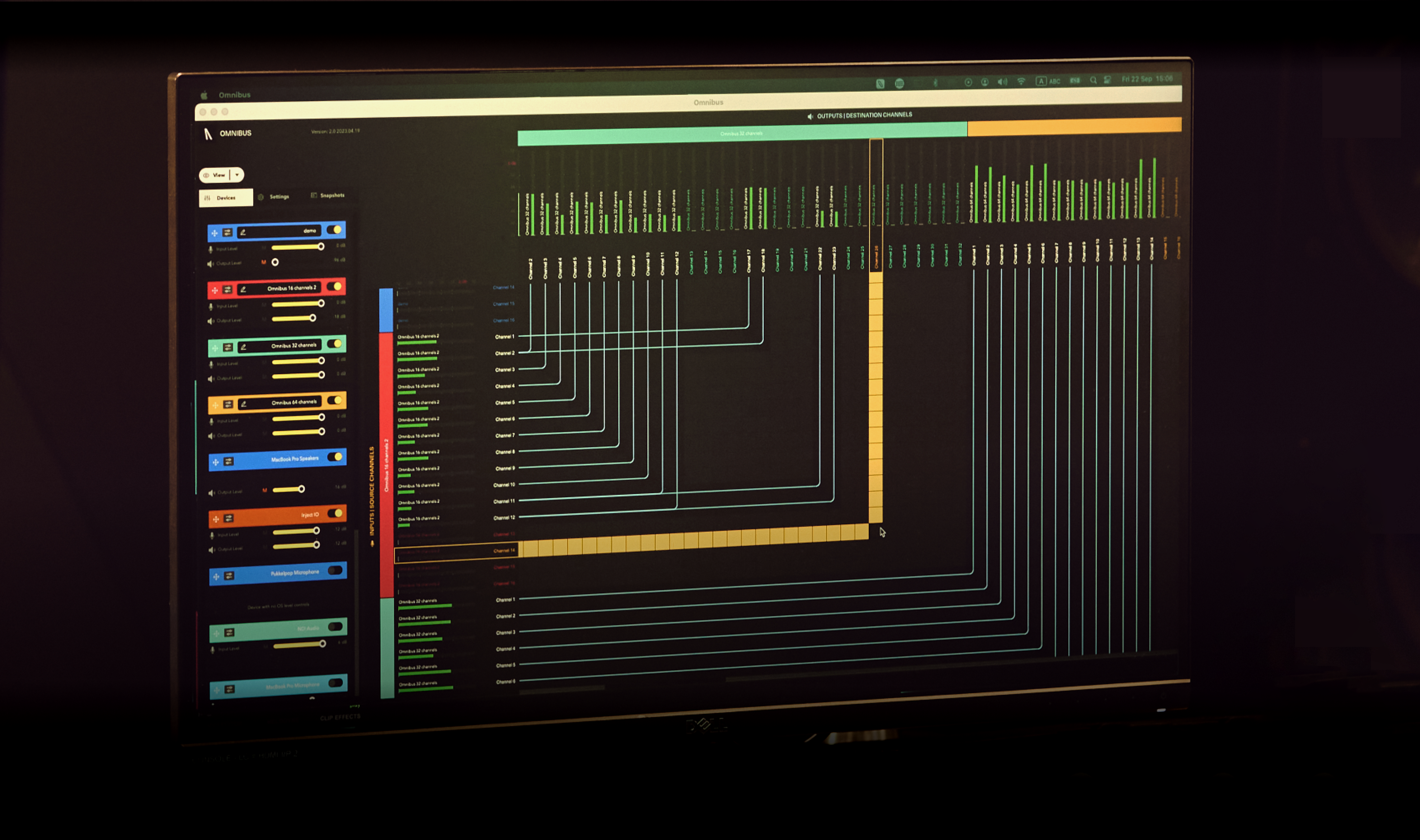
Step 2: Routing within OMNIBUS
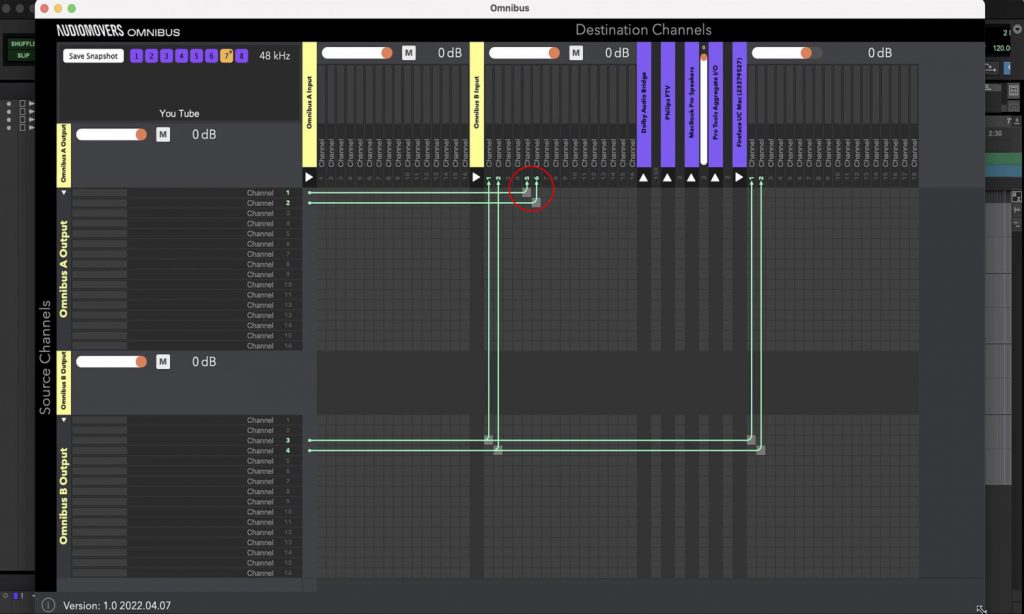
– Now, you will need to route the audio output from your applications to the input tracks within your DAW.
– In our example below, we’ve set the input channels within Pro Tools to channels 5 & 6. Therefore, we’re routing channels 1 & 2 of OMNIBUS A to channels 5 & 6 of our OMNIBUS B driver.
After completing this step, anything that you play from the applications on your computer will go into inputs 5 & 6 in your DAW. Now it’s time to source some samples.
Screenshot of Sampling set-up from OMNIBUS